How to Create Before & After Comparison Photos for Free (Side‑by‑Side Online)

Advertisement
Introduction
A single photo can be beautiful. But two photos next to each other can tell a story.
That’s why “before/after” images are everywhere: fitness transformations, home renovations, and design revisions. Side-by-side comparisons work because they’re instantly understandable. No long caption needed.
Most collage apps are overkill when all you want is simple: take two photos, join them into one, and download. That’s exactly what PicDitt Join Images is for.
Why Side‑by‑Side Works Best
- They remove ambiguity: If you post “before” and “after” separately, people might not see them in order. Side-by-side makes it undeniable.
- They keep attention: A single comparison image loads quickly and works in feeds, stories, and thumbnails.
- Professional Look: It’s the difference between “two random photos” and “a documented transformation.”
Real Scenarios
- Fitness: Progress pics (Day 1 vs Day 30). Visual results are powerful proof.
- Real Estate: Renovation comparisons. Kitchen “before vs after” shows value instantly.
- Social Media: “The Shot vs The Setup.” People love seeing behind-the-scenes.
How to Combine Two Photos with PicDitt
Use the tool here: https://picditt.com/misc/join-images
Step 1: Upload Image 1 and Image 2
Choose your two photos: the “before” and “after,” or “expectation” and “reality.”
Step 2: Choose Direction
- Horizontal (side-by-side): Best for Instagram feeds and Facebook. Viewers read left-to-right naturally.
- Vertical (stacked): Best for Stories, TikTok, or mobile screens where width is limited.
Step 3: Download
Once the layout looks right, download the final image. You now have one file you can upload anywhere.
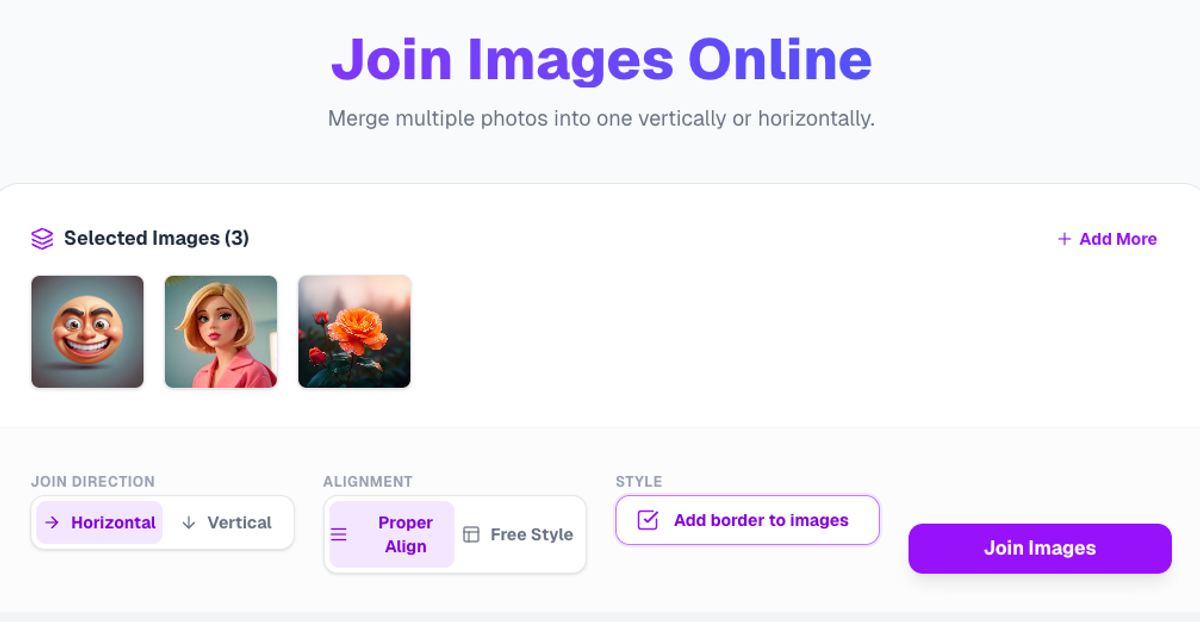
Instantly merge two images horizontally or vertically.
Feature Highlight: Auto‑Resize
One of the biggest frustrations with manually joining images is mismatched sizing (one huge, one tiny).
PicDitt handles the sizing for you. The Auto-Resize feature ensures the final join looks balanced and professional.
Privacy: Your Photos Stay Private
Before/after images are often personal (fitness progress, home interiors).
PicDitt processes images in the browser. The join happens locally on your device. Your original images aren’t sent to a cloud server for merging.
Conclusion
Side-by-side images are one of the simplest, most powerful formats on the internet.
If you want a clean before/after image without a complicated collage app, use PicDitt Join Images. Upload, merge, and tell your story in seconds.