Fix Your Profile Picture: How to Zoom and Resize Photos Online (WhatsApp, Instagram, LinkedIn)

Advertisement
Introduction
A good profile picture is supposed to be simple. But often, you upload a photo you like, and the app shows a circular preview where your face looks tiny, or your chin gets clipped by the circle.
The frustrating part is that the original image might be perfectly fine. It’s the profile picture crop that’s wrong.
That’s where PicDitt Zoom Image helps. It lets you zoom in/out and reposition your photo so your face is centered correctly—before you upload it anywhere.
The Problem: “The Tiny Head”
Most profile pictures are displayed inside a circle. That circle crop causes two common problems:
- Your face is too far away: On a phone, your profile picture is tiny. If your face isn't prominent, it's unrecognizable.
- Awkward Clipping: If your face isn't centered perfectly, the circle can slice through your chin or forehead.
The solution is to prep your profile picture intentionally: zoom to a flattering level and center your face.
Recommended Sizes (Cheat Sheet)
- WhatsApp DP: 500 × 500
- Instagram Profile (PFP): 320 × 320
- LinkedIn: 400 × 400
How to Zoom Your Profile Photo with PicDitt
Open the tool here: https://picditt.com/social/zoom-image
Step 1: Upload your photo
Choose a selfie, headshot, or travel photo. High resolution is best so zooming doesn't get blurry.
Step 2: Use the slider to zoom
Once your photo loads, use the zoom slider:
- Zoom in if your face is too small (most common).
- Zoom out if you’re too close.
- Target: Your face should fill a large portion of the frame so your eyes are clearly visible.
Step 3: Drag to center
Click and drag the image to reposition it. Aim for eyes in the upper-middle area and your chin fully inside the safe area.
Step 4: Download
When the preview looks right, click Download. Now you have a properly framed image ready for upload.
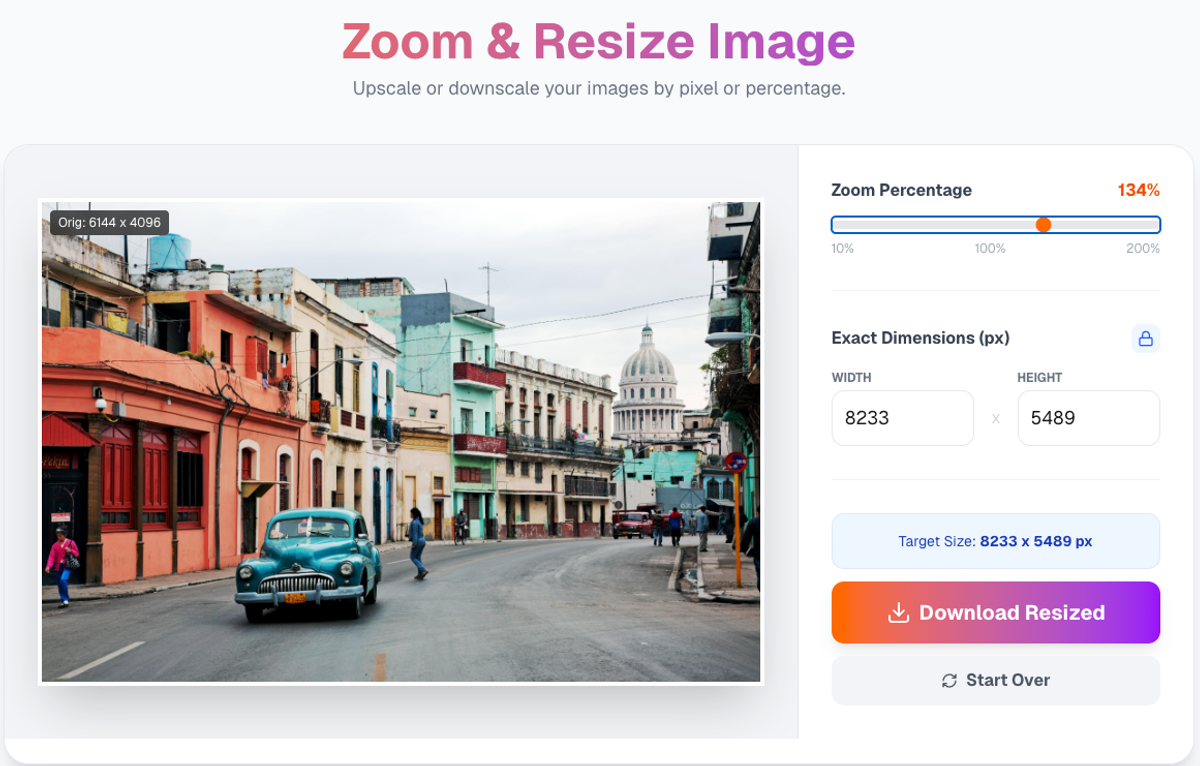
Zoom and reposition your photo to fit perfectly in a profile picture circle.
Pro Tips for Profile Pictures
- Keep it Simple: Busy backgrounds turn into visual noise at small sizes. Use plain walls or blurred backgrounds.
- Eye Contact: Zoom until your eyes are clear. If someone can't see your eyes, the photo doesn't connect.
- Circle-Safe Space: Remember corners get clipped. Don't put logos or text near the edges.
Privacy: Browser-Based
Profile pictures are personal. PicDitt runs in the browser. The zooming happens locally on your device. Your photo is never sent to a remote cloud server.
Conclusion
Your profile picture is the most visible image you’ll upload. Don't settle for a "tiny head" or awkward crop.
Use PicDitt Zoom to fix your framing in seconds and make a great first impression on WhatsApp, Instagram, and LinkedIn.