Fix Backwards Text: How to Flip and Mirror Images Online Instantly

Advertisement
Introduction
You take a great selfie, but when you look at it later, the logo on your shirt is backwards. The street sign behind you is unreadable. Your hair is parted on the wrong side.
This happens because front-facing cameras (selfie cams) act like a mirror while you are looking at them, but some phones "correct" the image after you snap it, while others don't. The result? A photo that looks weirdly unnatural or contains illegible text.
You don't need to retake the photo. You just need to Flip (or Mirror) it.
That’s exactly what PicDitt Flip Tool does. It lets you correct orientation issues in seconds directly in your browser.
Why Do You Need to Flip Photos?
1. Fixing Backwards Text
This is the #1 reason. If you take a picture in a mirror or with a webcam, any text in the shot will be reversed. Flipping the image Horizontally fixes this instantly, making signs and logos readable again.
2. Improving Composition (The "Gaze Rule")
In photography design, you usually want the subject looking into the frame, not out of it. If your subject is looking left, but your text is on the right, the layout feels disconnected. Flipping the image can balance the composition and guide the viewer's eye.
3. Creating Reflection Effects
Flipping an image Vertically creates a "water reflection" effect. Designers use this to create symmetrical patterns or artistic layouts.
How to Flip Images with PicDitt
Use the tool here: https://picditt.com/editing/flip
Step 1: Upload Your Photo
Select the photo you need to fix. Supports JPG, PNG, and WebP.
Step 2: Choose Flip Direction
- Flip Horizontal: This is the "Mirror" effect. It swaps left and right. Use this for selfies and backwards text.
- Flip Vertical: This swaps top and bottom. Use this for reflection effects or correcting upside-down scans that are also mirrored.
Step 3: Download
Once the image looks natural, click Download.
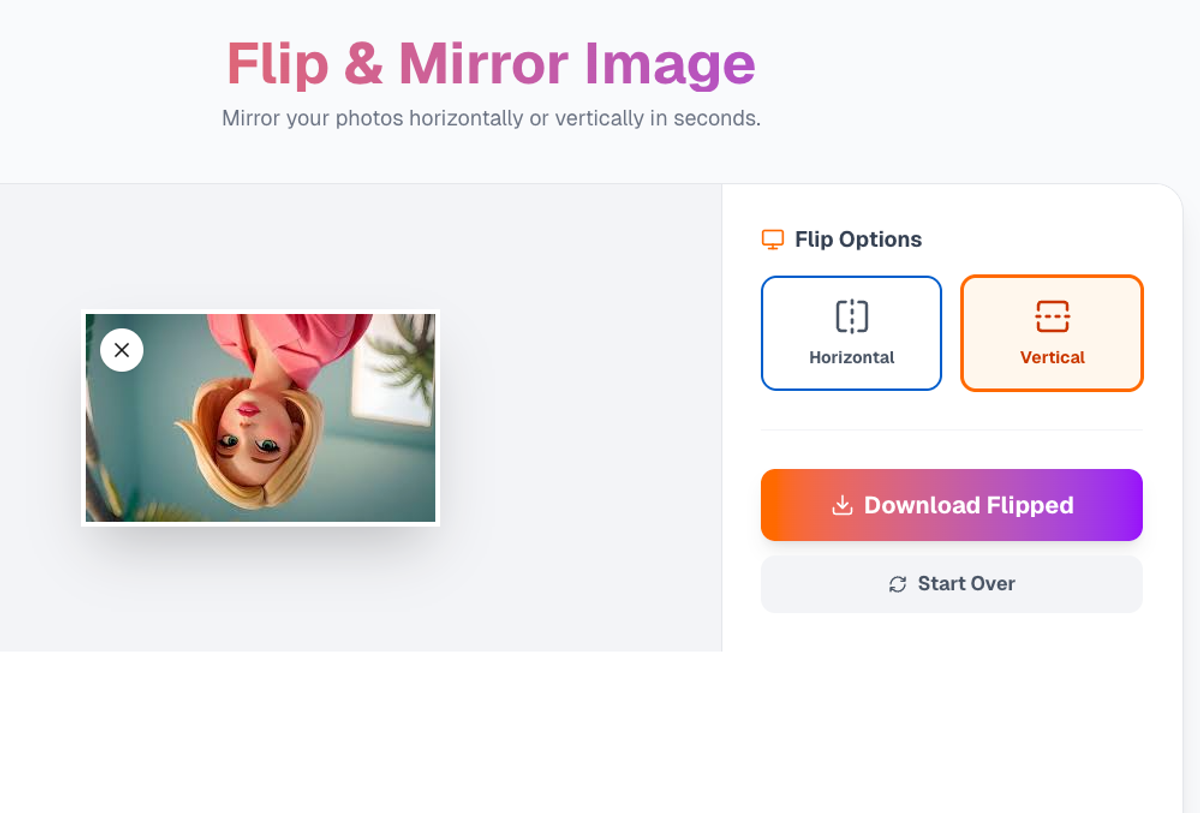
Instantly mirror images horizontally or vertically to fix orientation.
Flip vs. Rotate: What’s the Difference?
It’s easy to confuse them, but they are different tools.
- Rotate: Turns the image like a wheel (90°, 180°). If your text is sideways, you need Rotate.
- Flip: Mirrors the image across an axis. If your text is backwards, you need Flip.
Privacy: Browser-Based Editing
Like all PicDitt tools, flipping happens locally on your device.
If you are fixing a personal selfie or a private document, you don’t want to upload it to a server. PicDitt processes the pixel data in your browser, ensuring your photos stay private.
Conclusion
Don’t post backwards photos. It looks unprofessional and makes text impossible to read.
Use PicDitt Flip to mirror your images and fix orientation errors in one click.