Brand Your Photos: How to Add Logos, Watermarks, and Text Overlays in Seconds

Advertisement
Introduction
You took a great photo. The lighting is good. The product looks clean. Now comes the annoying part: before you post it to Instagram or Facebook Marketplace, you need to add your logo.
If you’ve tried to do this in Photoshop, you know it’s just too much software for a simple job. Import. Layer. Resize. Export. Repeat.
PicDitt Add Logo & Text is built for this exact moment: quick branding without the complexity.
Why Branding Matters (More Than People Think)
1. Professionalism
A logo or consistent text style makes an image feel like it belongs to a brand, not a camera roll. You’ll notice it instantly in product listings and real estate posts.
2. Protection
Watermarks don’t stop determined theft, but they stop the lazy thief who grabs your image and reposts it. A basic watermark keeps your name attached when the image travels.
3. Information
Text overlays sell faster. Adding "Sold", "Open House", or "$29.99" helps your audience act immediately without asking questions.
Real-World Use Cases
- Real Estate: Adding "JUST LISTED" or "OPEN HOUSE" text.
- E-commerce: Adding "SALE" badges to product shots.
- Event Photography: Adding a subtle "© YourName" to proofs.
- Meme Makers: Adding top/bottom captions.
How to Add a Logo or Text Using PicDitt
Open the tool here: https://picditt.com/misc/add-logo-text
Step 1: Upload your base image
Choose the photo you want to brand. This can be a product photo, listing photo, or selfie.
Step 2: Add your logo (PNG)
Upload your logo file. For best results, use a PNG with transparency. This ensures your logo sits cleanly on top of the image without an ugly white box behind it.
Step 3: Add Text
Type your brand name, price, or promo line. Choose a font and color that matches your brand.
Step 4: Drag & Drop
This is where PicDitt shines. Simply drag your logo or text to exactly where you want it (corner, center, etc.) until it looks balanced.
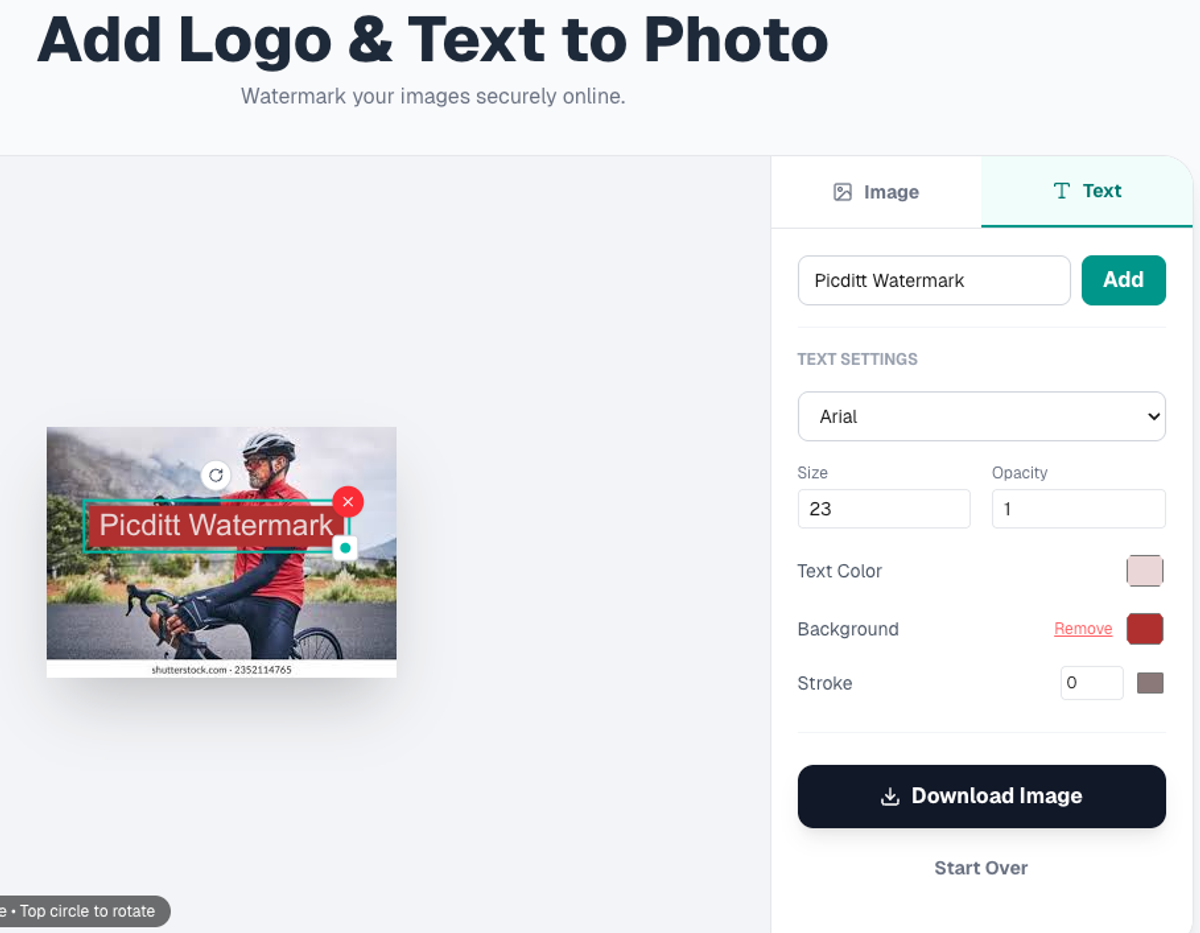
Easily position your logo and add custom text overlays.
Design Tips for Pro Results
- Don’t cover the subject: Ensure your logo isn't blocking the product or someone's face.
- Use High Contrast: White text on dark backgrounds, Black text on light backgrounds.
- Corner Placement: Keeping logos in the bottom-right or bottom-left corner is the industry standard for a reason—it looks clean.
Privacy: Browser-Based
Branding often happens on unreleased products or client work.
PicDitt processes images in the browser. Your photos are not uploaded to a remote server for editing.
Conclusion
If you’re running a small business, branding your images isn’t optional—it’s how you look professional.
Use PicDitt Add Logo to upload, brand, and download in seconds.